Have you ever wondered why some SSDs appear like small boxes and others like tiny sticks? You are not alone.
If you're considering upgrading your PC, laptop, or workstation, understanding SSD form factors can help you select the best storage solution. You've arrived at the correct location.
SSDs come in many shapes and sizes, referred to as form factors. While they all store data faster than conventional hard drives, each type is tailored to specific devices and performance requirements.
Selecting the appropriate form factor can enhance your system's setup, appearance, compatibility, and performance.
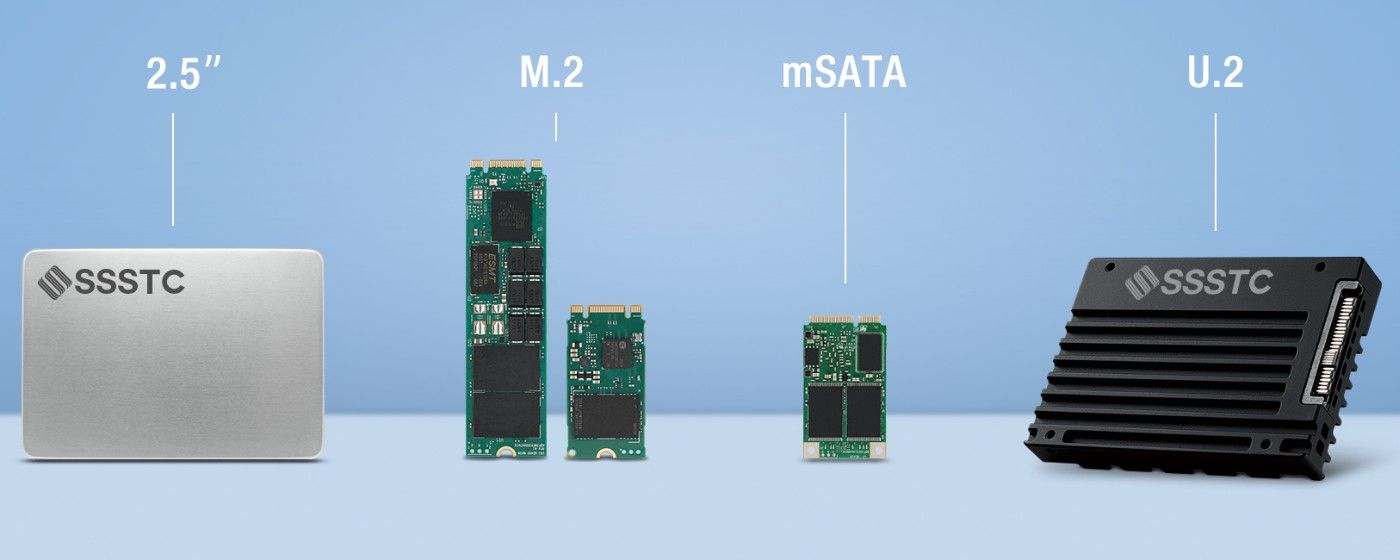
In this article, we'll discuss the three most prevalent SSD form factors: 2.5-inch, M.2, & U.2 in a straightforward and beginner-friendly manner.
What Is an SSD Form Factor?
An SSD's physical dimensions, shape, and connecting type are referred to as its form factor. It ascertains:
- How the SSD fits inside a device
- Which cables or slots does it use
- Its compatibility with desktops, laptops, and servers
- Possible speed and performance levels
Several form factors are intended for various types of systems. Some are designed for tiny laptops, while others are intended for high-performance desktops & enterprise servers. This is why, before purchasing an SSD, you should always check its compatibility with your device.
Understanding SSD form factors can help prevent installation mistakes and reduce the chances of facing common SSD Problems later.
Even though two SSDs may offer the same storage capacity, their form factors can make a huge difference in installation, airflow, upgrade flexibility, and overall performance.
Types of SSD Form Factors
2.5-inch SSD
The 2.5-inch SSD is one of the most popular and beginner-friendly SSD models. It appears like a standard laptop hard disk and is often connected via a SATA connector. These SSDs are widely used in older desktops and laptops due to their high compatibility and low cost.
Key Features:
- Uses SATA interface
- Common in older laptops and desktops
- Easy to install and widely compatible
- Affordable compared to newer SSD types
Speed:
- Most 2.5-inch SATA SSDs have speeds of roughly 500-600 MB/s. While not as fast as contemporary NVMe drives, they outperform regular HDDs.
Best For:
- Upgrading older PCs or laptops
- Budget-friendly storage upgrades
- General gaming and everyday use
Pros
- Affordable
- Reliable
- Widely supported
Cons
- Slower than NVMe SSDs
- Requires cables in desktop setups
M.2 SSD
M.2 SSDs are small, cable-free devices that plug directly onto the motherboard. They are particularly prevalent in modern laptops, gaming PCs, & workstations. Their thin shape also saves space within the system and enhances cable management.
Key Features
- Slim and compact design
- Connects directly to the motherboard slots
- Available in SATA and NVMe versions
- Reduces cable clutter
SATA vs NVMe M.2
- Not every M.2 drive has the same speed.
- While M.2 NVMe SSDs use the PCIe interface for significantly better performance, M.2 SATA SSDs use the SATA protocol and offer speeds comparable to those of 2.5-inch SATA SSDs.
- NVMe drives are particularly useful for tasks that require high-speed data transfer, such as gaming & video editing.
Speed
- NVMe M.2 SSDs are ideal for demanding tasks because they can reach speeds of a few thousand MB/s.
Best For
- Gaming PCs
- Modern laptops
- Video editing
- Fast boot and load times
Pros
- Very fast performance
- Compact size
- No extra cables needed
Cons
- Can run hotter under heavy load
- Compatibility depends on the motherboard's support
U.2 SSD
U.2 SSDs are primarily intended for enterprise systems & servers. They deliver superior performance, enhanced cooling, and enormous storage capacity for professional tasks. These SSDs are widely used in data centers, where reliability and consistent performance are critical.
Key Features
- Designed mainly for enterprise environments
- Uses PCIe and NVMe technology
- Supports hot-swapping in servers
- Better cooling compared to compact SSDs
Speed
- U.2 SSDs can deliver performance comparable to high-end NVMe M.2 drives while maintaining improved heat control during intense workloads.
Best For
- Servers
- Workstations
- Data centers
- Professional workloads
Pros
- High performance
- Better cooling
- Enterprise reliability
Cons
- Expensive
- Rarely used in standard consumer PCs
- Requires compatible hardware
Quick Comparison
- The 2.5-inch SSD primarily uses the SATA interface and can reach up to 600 MB/s. It is frequently used to upgrade aging PCs and laptops since it is inexpensive, dependable, and generally compatible.
- M. 2 SATA SSDs offer similar rates of up to about 600 MB/s and also employ the SATA interface. They are an excellent option for contemporary laptops and space-saving PC systems due to their small size.
- Based on the generation and model, M.2 NVMe SSDs can achieve speeds of 2,000 MB/s to 7,000+ MB/s thanks to the PCIe and NVMe interface. These drives are perfect for high-performance systems that need quick loading and data transfer times, gaming PCs, and video production.
- U.2 SSDs are intended for use in business and professional settings. Additionally, they deliver enterprise-level performance with improved cooling and reliability for workstations and servers by leveraging the PCIe and NVMe interfaces.
Which SSD Form Factor Should You Choose?
Choosing the right SSD depends on your device and needs.
If you're looking for an easy and reasonably priced upgrade, go with a 2.5-inch SSD. For optimal speed and cutting-edge performance, choose an M.2 NVMe SSD. Professional server workloads and enterprise systems are best suited for U.2 SSDs.
Before purchasing, always ensure that your motherboard or laptop supports the SSD form factor.
Final Thoughts
SSD technology has advanced significantly over conventional storage drives. Every form factor has a distinct function, from the dependable 2.5-inch SATA SSD to the lightning-fast M.2 NVMe SSD to the enterprise-focused U.2 SSD.
Understanding these SSD types will help you make more informed upgrade decisions, whether you're creating a gaming PC, upgrading an aging laptop, or setting up an advanced workstation.
About the Author
Hello, my name is Bran Bolton, and I am a computer enthusiast, storage hardware enthusiast, and gamer who appreciates simplifying complex technological subjects for everyday consumers.
I enjoy providing practical information on PC components, SSD upgrades, and current storage solutions to help readers make better IT decisions.
Reference:
ExplainingComputers. (2020, November 15). Explaining SSDs: form factors, interfaces & technologies [Video]. YouTube. https://www.youtube.com/watch?v=EXLfErPEYiw